How to Login to Your PNP Clearance Online Account 2026
Logging in to your PNP Clearance Online account is one of the most important steps if you already created an account in the National Police Clearance System, also called NPCS. Kapag may account ka na, hindi mo na kailangan mag-register ulit every time. You just need to login using your correct email or username and password, then continue with your application, appointment, payment, or account checking.
This guide is for applicants who already have an NPCS account but need help accessing it. Maybe first time mong mag-login after registration, maybe nakalimutan mo password mo, or maybe hindi ka sure kung saan ka dapat pumunta. Relax lang. This article will walk you through the login process in a simple, practical, and beginner-friendly way.
For the complete process from account creation to appointment and release, read our PNP Clearance Online Complete Guide.
Important note: pnp-clearance.com is an independent guide website only. We are not connected with, endorsed by, or operated by the Philippine National Police. For actual login, registration, appointment, payment, and official instructions, always use the official National Police Clearance System portal.
Quick Answer: How Do You Login to Your PNP Clearance Online Account?
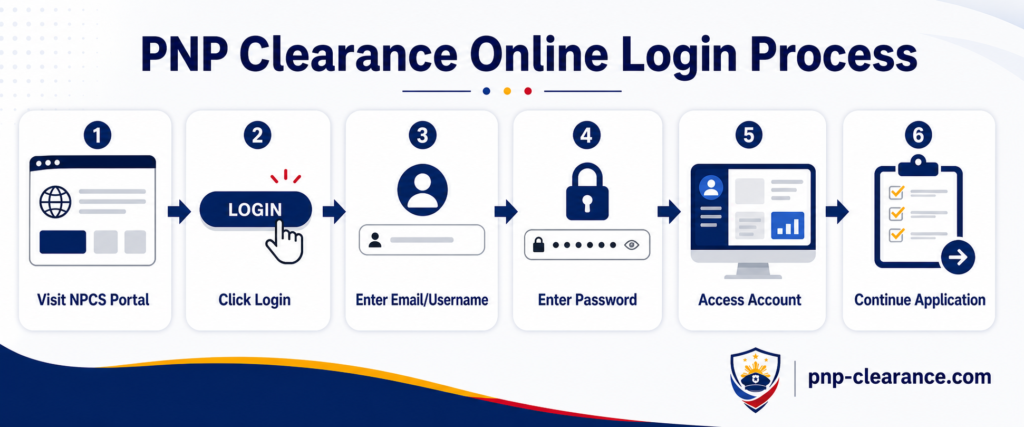
To login to your PNP Clearance Online account, go to the official National Police Clearance System portal, click Login, enter your registered email or username and password, then access your account dashboard. If you forgot your password, use the official password reset option instead of creating multiple accounts.
The official NPCS portal shows both Register and Login options for applicants. The official PNP application guide also explains that new applicants should register, while applicants with an existing account should login.
What Is a PNP Clearance Online Account?
A PNP Clearance Online account is your account in the National Police Clearance System. This is where you access your online clearance transaction. In simple words, ito yung account mo para makapag-proceed ka sa police clearance process online.
Your account may be used for:
- Starting or continuing your police clearance application
- Checking appointment details
- Accessing payment-related information
- Saving or reviewing your reference number
- Managing your applicant profile
- Resetting access if you forgot your password
Why Your Login Details Matter
Your login details are important because your NPCS account contains personal information. Hindi ito basta ordinary account lang. It may include your name, contact details, address, appointment data, and clearance application details.
So dapat ingatan mo ang login credentials mo. Do not share your email, password, screenshots, reference number, or ID details with strangers or unofficial agents.
Simple Reminder
If someone offers to “login for you” or “process faster” using your account, be careful. Your personal data can be misused. Always use the official system yourself whenever possible.
Before You Login: Prepare These First
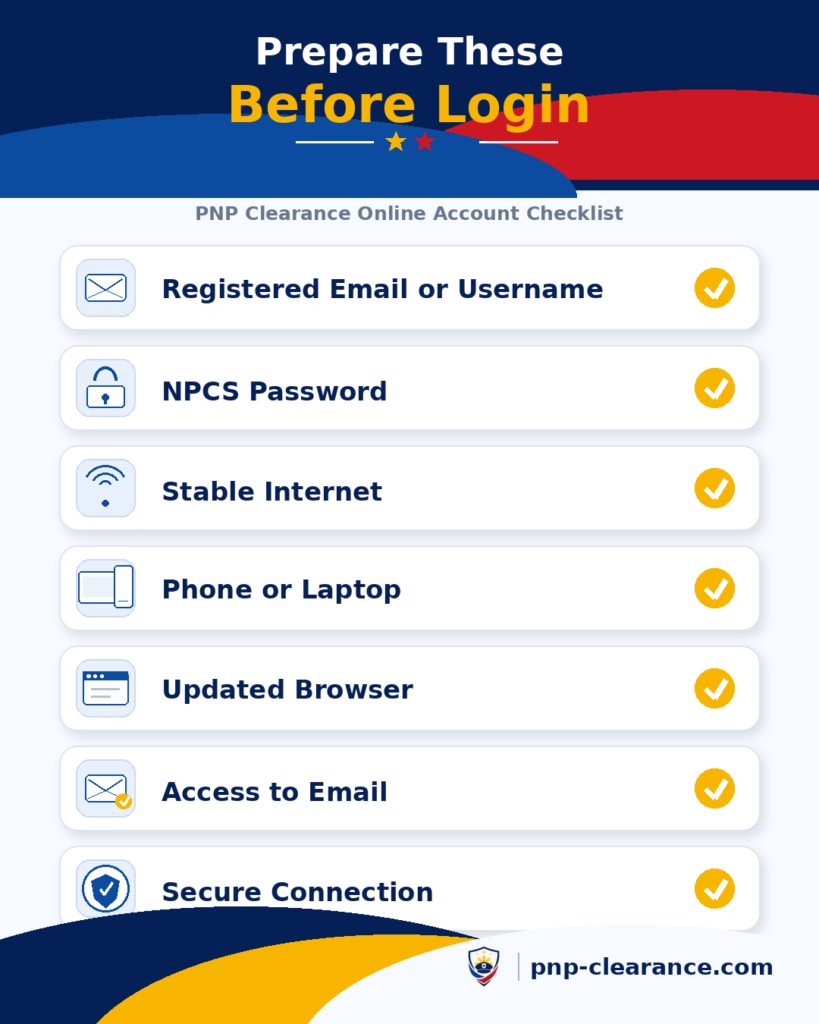
Before logging in, prepare the details you used when you registered. This saves time and helps avoid login errors.
Prepare these:
- Registered email address or username
- Password
- Stable internet connection
- Phone, tablet, or computer
- Browser such as Chrome, Edge, Safari, or Firefox
- Access to your email in case password reset is needed
- Screenshot or notes of your previous reference number if available
If you are preparing for an actual clearance application, also check our PNP Clearance Requirements 2026 guide so you know what to prepare before appointment day.
Step-by-Step Guide to Login to Your PNP Clearance Online Account
This is the main login guide. Sundan mo lang step by step.
Step 1: Go to the Official NPCS Portal
First, open your browser and go to the official National Police Clearance System portal. This is the official online platform for NPCS login and registration.
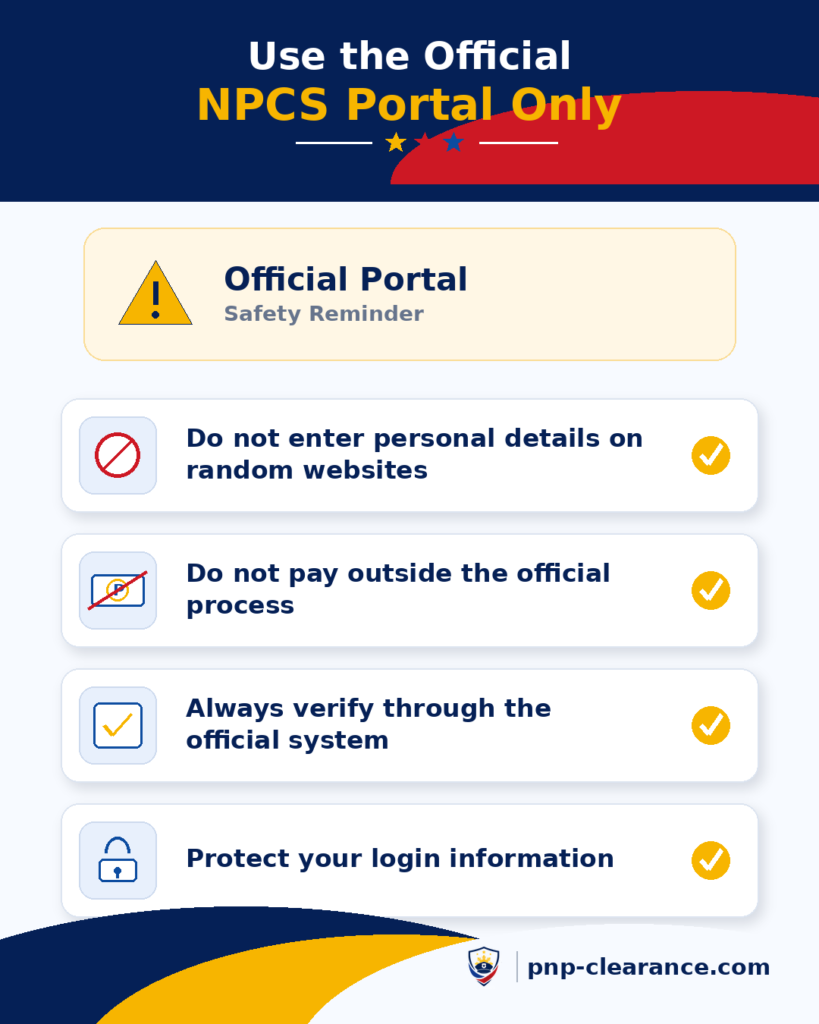
Do not just click random links from social media comments, messages, or unofficial pages. Since you will enter your login details, kailangan secure at official ang site na gagamitin mo.
Safety Tip
Before entering your email and password, check if the website is the official NPCS portal. If the page looks suspicious, asks for unusual payments, or requests sensitive information outside the normal process, stop and verify first.
Step 2: Click the Login Button
Once you are on the official NPCS portal, look for the Login button. If you already have an account, Login ang pipiliin mo, not Register.
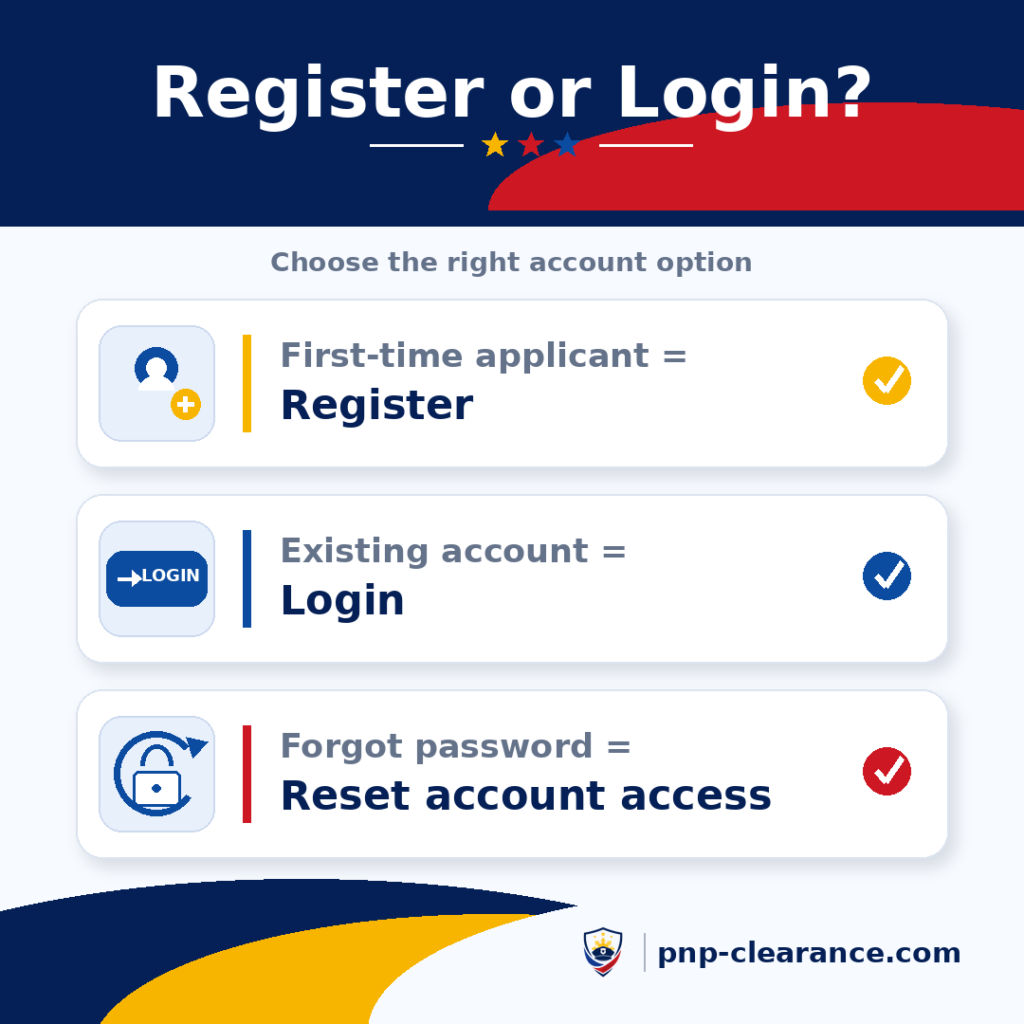
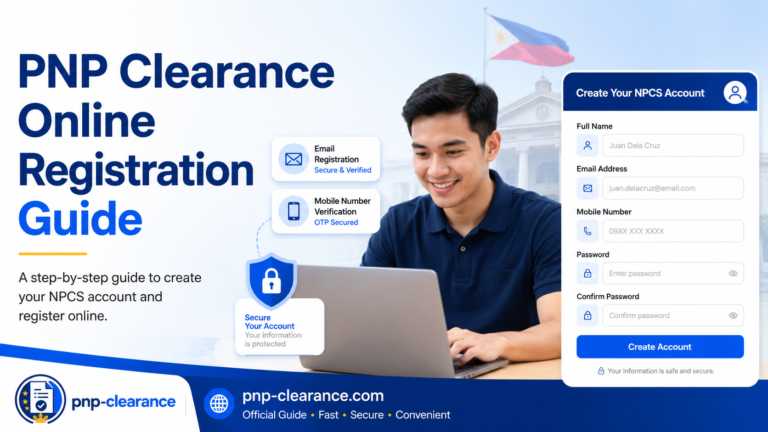
If wala ka pang account, you need to register first. You can read our PNP Clearance Online Registration Guide if you are still at the account creation stage.
When Should You Click Register Instead?
Click Register only if you have never created an NPCS account before. If you already registered before, use Login. Creating multiple accounts can make your records confusing, especially if your name, email, or mobile number is already connected to an existing account.
Step 3: Enter Your Registered Email or Username
After clicking Login, enter the email address or username connected to your NPCS account. Make sure there are no spelling mistakes.
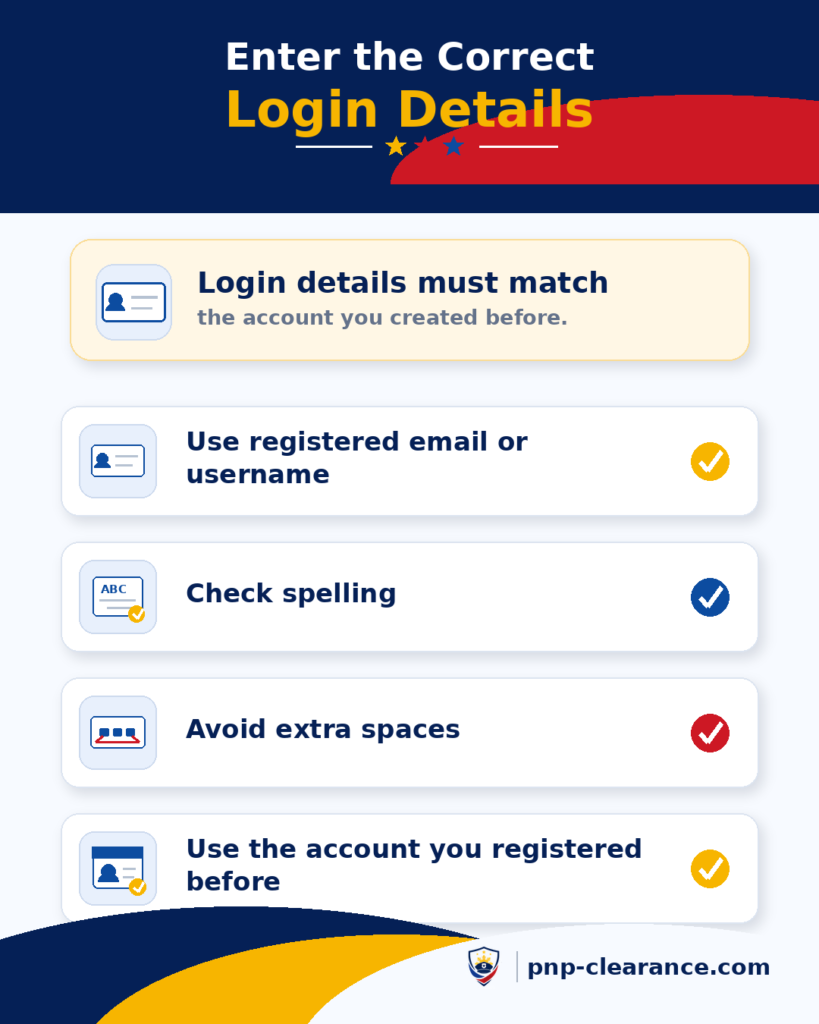
Common mistakes include:
- Wrong email spelling
- Using a different email
- Typing extra spaces before or after the email
- Using an old email you did not register with
- Confusing work email and personal email
For example, if you registered using your Gmail account, do not try logging in using your Yahoo or work email. Use the same account you used during registration.
Practical Tip
If login fails, try to remember which email you used during registration. Check your email inbox for old NPCS-related messages, if any. Sometimes, doon mo makikita kung aling email ang ginamit mo.
Step 4: Enter Your Password Carefully
Next, enter your password. Passwords are case-sensitive, so capital letters and small letters matter.
Before clicking Login, check:
- Is Caps Lock turned on?
- Did you type the correct password?
- Did your phone keyboard auto-capitalize anything?
- Did you accidentally add a space?
- Are you using an old password?
Password Privacy Reminder
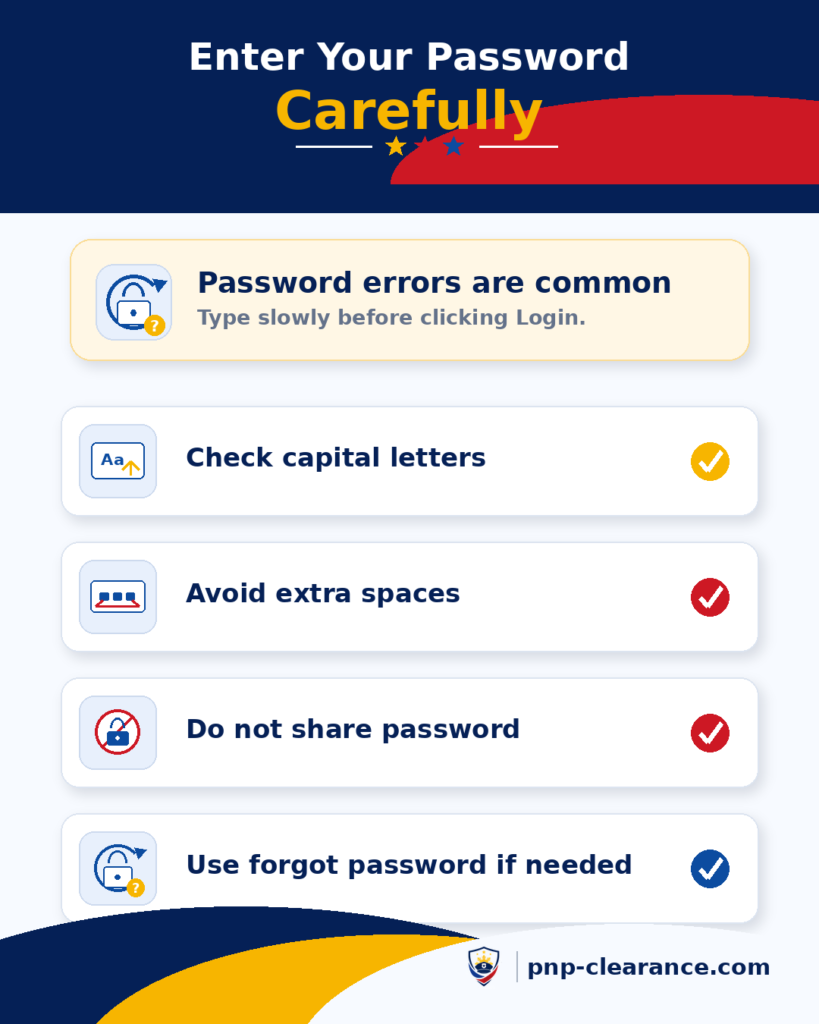
Do not ask someone else to type your password for you. If you need help, ask them to guide you verbally, but ikaw pa rin ang mag-type. This protects your account.
Step 5: Click Login and Wait for the Page to Load
After entering your email or username and password, click Login. Wait for the page to load. Do not click the button many times right away.
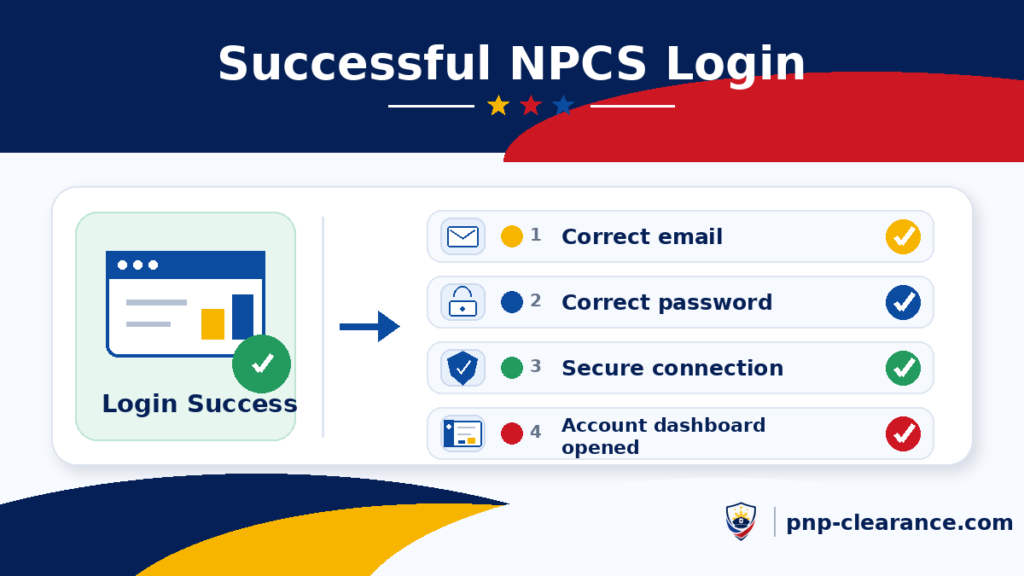
If the internet is slow, give it a few seconds. Minsan naglo-load lang talaga ang page, especially if connection is unstable or the website is busy.
If Nothing Happens
Refresh only once and try again. If it still does not work, check your internet connection or try another browser. Do not keep submitting repeatedly if the page is frozen.
Step 6: Access Your Account Dashboard
Once logged in, you should be able to access your account dashboard or the next available account page. From there, you may continue your clearance-related transaction.
You may use your account to:
- Continue your application
- Check profile details
- Review appointment status
- Check payment-related information
- Save your reference number
- Proceed to appointment-related steps
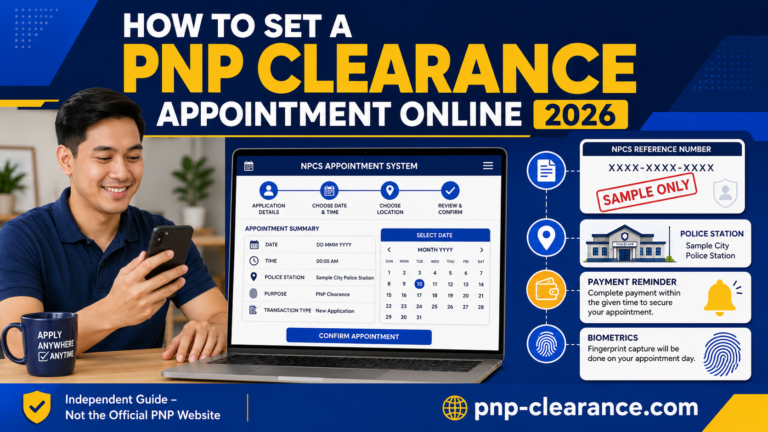
If your next step is booking a schedule, read our PNP Clearance Appointment Online Guide for a separate walkthrough.
What If You Cannot Login to Your PNP Clearance Account?
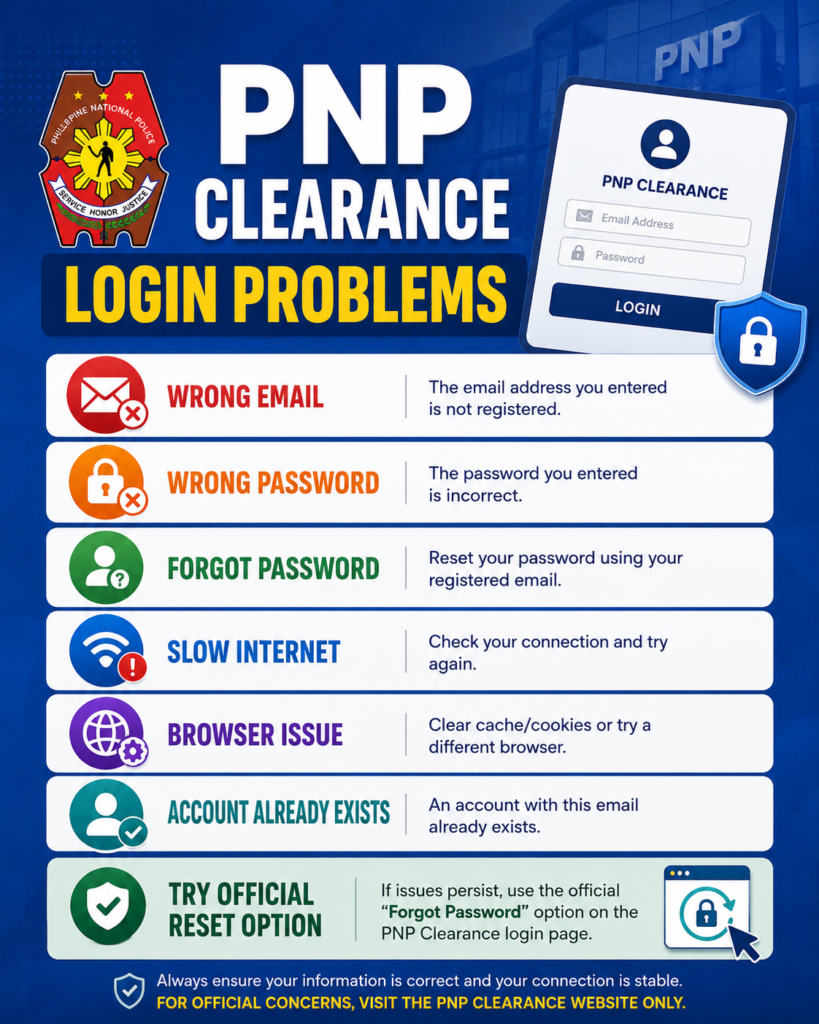
Login problems happen. Hindi ibig sabihin nito sira agad account mo. Most of the time, it is caused by wrong email, wrong password, unstable internet, browser issue, or forgotten login details.
Problem 1: Wrong Email or Username
If the system does not recognize your login, check if you are using the correct registered email. Many applicants have multiple emails, so this mistake is common.
Try checking:
- Gmail
- Yahoo
- Outlook
- Work email
- Old personal email
- Email saved in your browser
What to Do
Use the email you used during registration. If you are not sure, check old inbox messages or browser-saved login details.
Problem 2: Wrong Password
If your password is incorrect, do not guess too many times. Try carefully once or twice. If you still cannot login, use the official password reset option.
External link location:
In this section, link the phrase official NPCS password reset page to the official forgot password page.
The official NPCS forgot password page states that password reset can be requested and notes that requests are limited up to three times daily.
Password Reset Tip
After resetting your password, save it in a secure place. Do not save it in a public computer or send it through chat.
Problem 3: Forgot Password
If you forgot your password, use the official reset password page. Do not create another account immediately.
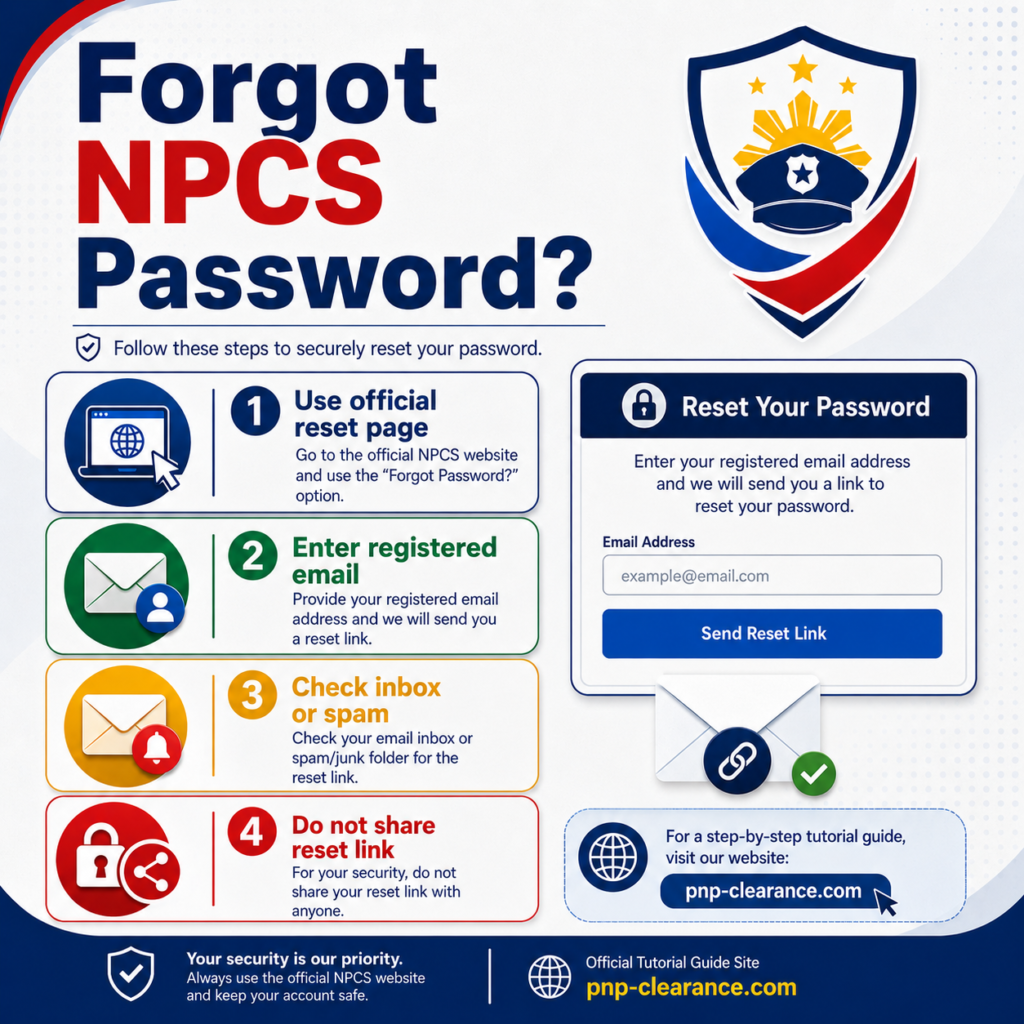
Creating a new account right away may create confusion later. Mas okay na i-recover muna ang existing account.
Problem 4: Website Not Loading
If the official portal is not loading, the issue may be your internet, browser cache, device, or temporary system availability.
Try these:
- Refresh the page
- Check your internet connection
- Use another browser
- Clear browser cache
- Try using laptop instead of phone
- Try again later
- Avoid peak hours if the site is slow
Mobile Tip
If you are using mobile data, try switching to Wi-Fi. If using Wi-Fi, try restarting the router or switching to mobile data. Simple pero minsan effective.
Problem 5: Browser Auto-Fill Enters the Wrong Password
Sometimes your browser automatically fills in an old password. If you recently changed your password, auto-fill might still use the old one.
What to Do
Delete the auto-filled password and type your password manually. If the new password works, update your saved password in your browser or password manager.
PNP Clearance Login Safety Tips
Because NPCS login involves personal information, treat your account like an important government transaction account.
Do Not Share Your Password
Never share your NPCS password with anyone. Kahit kaibigan, kakilala, or someone offering “assistance,” avoid giving your login details.
Do Not Send Screenshots With Personal Data
Avoid sending screenshots that show your full name, reference number, birthday, address, email, or payment details. If you need to ask for help, blur or cover sensitive parts.
Avoid Unofficial Agents
Do not pay people who claim they can login, book, or process your clearance faster outside the official system. Your account and personal data may be at risk.
Use Your Own Email
Use your own email address. If you use someone else’s email, you may have trouble with password recovery later.
Extra Account Security Tip
Make sure your email account itself is secure. If someone can access your email, they may also access password reset messages.
Login vs Registration: What Is the Difference?
Many applicants get confused between login and registration. Simple lang:
- Registration means creating a new NPCS account.
- Login means accessing an existing NPCS account.
If You Are a First-Time Applicant
If first time mo pa lang and wala ka pang account, start with registration. You need to create an account before you can login.
Internal link location:
Link PNP Clearance Online Registration Guide in this paragraph.
If You Already Have an Account
If nakapag-register ka na before, login instead of registering again. Use the same email or username and password.
Why This Matters
Duplicate accounts can cause confusion. If you use different emails, you might forget which account contains your application or appointment details.
What Can You Do After Logging In?
After successful login, your next step depends on your current application status.
If You Have Not Started an Application Yet
You may proceed with the clearance application process, complete your profile, choose your purpose, and follow the official steps shown in the NPCS portal.
If You Need to Set an Appointment
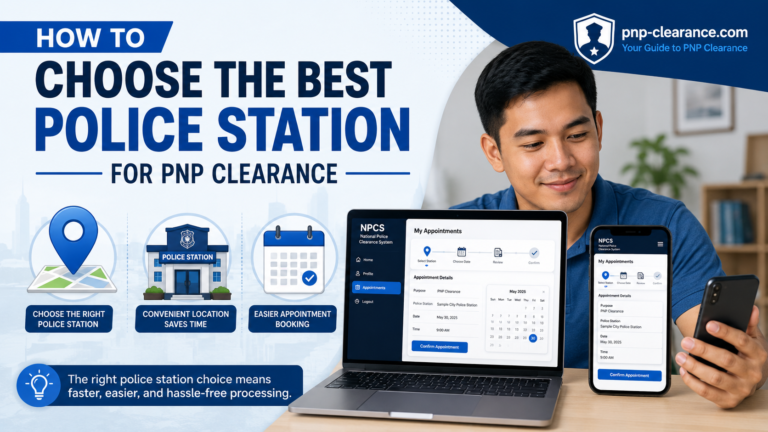
After login, you may need to choose a police station and appointment schedule, depending on the available system options.
If You Need to Pay
If your application requires payment, follow the payment instructions shown in the official system. Keep your proof of payment and reference number.
The official PNP guide lists items applicants should present, including appointment reference number and proof of payment/payment confirmation.
If You Need to Check Your Reference Number
Your NPC reference number may be needed for appointment checking, payment, and station verification. Save it properly.
Simple Reminder
Screenshot your reference number and save it in your phone notes. Better yet, send a copy to your own email so may backup ka.
Common Mistakes When Logging In
Login mistakes are easy to avoid if you know what to check.
Mistake 1: Using the Wrong Email
If you registered with one email but login with another, the system may not recognize your account.
Mistake 2: Typing the Wrong Password
Password errors are common, especially if you use capital letters, numbers, or symbols.
Mistake 3: Clicking Register Again
If you already have an account, choose Login. Register is for new accounts.
Mistake 4: Ignoring the Forgot Password Option
If you cannot remember your password, use password reset. Do not keep guessing endlessly.
Mistake 5: Asking Someone Else to Login for You
This can expose your personal information. If someone helps you, make sure you still control the keyboard and password.
Mistake 6: Using Public Wi-Fi
Avoid logging in using unsecured public Wi-Fi, especially if you are entering personal information.
Mistake 7: Clicking Random Links
Always go directly to the official NPCS portal. Do not trust random links sent through comments or messages.
Mobile Login Tips for PNP Clearance Online
Many applicants use mobile phones because mas convenient. Pwede naman, but you need to be extra careful because small screens can cause typing errors.
Use Landscape Mode if Needed
If the login page looks too small, rotate your phone to landscape mode. This may make the form easier to read.
Check Auto-Capitalization
Phone keyboards sometimes capitalize the first letter automatically. Passwords are case-sensitive, so check carefully.
Avoid Copy-Paste Errors
If you copy and paste your password, make sure there are no extra spaces before or after it.
Take Secure Screenshots Only When Needed
If you screenshot appointment or reference details, store them safely. Do not post them online.
Best Mobile Practice
Use your own phone, your own internet connection, and your own email. It is safer and easier for account recovery.
Desktop Login Tips for PNP Clearance Online
Using a desktop or laptop can be easier because the screen is bigger.
Use an Updated Browser
Use an updated browser so the official portal works properly. If one browser fails, try another.
Avoid Shared Computers
If you use a computer shop or office computer, do not save your password. Always logout after using the account.
Clear Browser Cache if the Page Acts Weird
If the page is not loading correctly, clearing browser cache may help. You can also try incognito or private browsing mode.
Logout Reminder
After using your account on a shared device, logout properly and close the browser.
What If You Forgot Your Registered Email?
Forgetting the registered email can be frustrating. Pero before you panic, try these steps.
Check Your Email Accounts
Open your possible email accounts and search for messages related to NPCS, police clearance, or PNP clearance.
Check Browser Saved Logins
If you previously logged in using your browser, your saved login may show the email used.
Check Your Notes or Screenshots
Some applicants save login details in phone notes or screenshots. Search carefully.
Important Warning
Do not create a new account immediately just because you forgot your email. Try to recover or identify the original email first.
What If You Forgot Your Password?
If you forgot your password, use the official password reset page. This is the safer way to recover your account.
Basic Password Reset Steps
- Go to the official NPCS forgot password page.
- Enter your registered email or username.
- Check your inbox.
- Check spam or junk folder if no message appears.
- Follow the reset instructions.
- Create a new password.
- Login again using your new password.
Password Reset Limit
The official forgot password page notes that password reset requests may be limited up to three times daily. So do not repeatedly request reset links without checking your inbox first.
Account Privacy and Data Protection Reminder
Your NPCS account is connected to personal data, so privacy matters. Treat it like any government-related online account.
Keep Your Email Secure
Your email may be used for account recovery. If your email is hacked or accessible to others, your NPCS account may also be at risk.
Do Not Post Your Reference Number
Your reference number should not be posted publicly. It may be connected to your application or payment details.
Be Careful With Screenshots
Screenshots are useful, but they can expose private data. Blur sensitive information if you need to ask someone for help.
Practical EEAT Reminder
For official actions, use official government sources. Guide websites like pnp-clearance.com can help explain steps, but the actual transaction should always be done through the official NPCS portal.
FAQs About PNP Clearance Online Login
Conclusion
Logging in to your PNP Clearance Online account is simple if you use the correct official portal, registered email or username, and password. The most important thing is to avoid rushing. Check your email spelling, password, internet connection, and browser before assuming there is a serious account problem.
If you forgot your password, use the official NPCS password reset option. Do not create multiple accounts right away, and do not share your login details with unofficial agents or strangers. Your account may contain personal information, so protect it properly.
After you login, you can continue with the next steps such as checking your application, setting an appointment, saving your reference number, following payment instructions, and preparing for your station visit.
For the full step-by-step process, read our PNP Clearance Online Complete Guide. If you still need to create an account, start with our PNP Clearance Online Registration Guide. If you are ready to book your schedule, continue with our PNP Clearance Appointment Online Guide.